How to assign or change shortcuts
macOS has a handy built-in way to change (or create) keyboard shortcuts for any command you see in Shottr's menu bar. You can only set local shortcuts that way (they will work when the app is open and active), and yes, it only works for the commands that are exposed in the menu.
Quick guide
Open Shottr and find the menu command you want to change. Note the exact name as it appears in the menu, including capitalization and punctuation. Let's say you want to assign Opt+Cmd+S to object snapping. The menu item would be "Snap to Objects" (it's sitting in the menu Draw).
- Click the Apple menu → System Settings
- Go to Keyboard, then click Keyboard Shortcuts…
- In the left sidebar, select App Shortcuts.
- Click the + (plus) button. You'll get a little dialog with three fields:
Application — pick Shottr
Menu Title — Type the exact name of the menu command. It has to match perfectly.
Keyboard Shortcut — Click in the field and press your desired key combo.
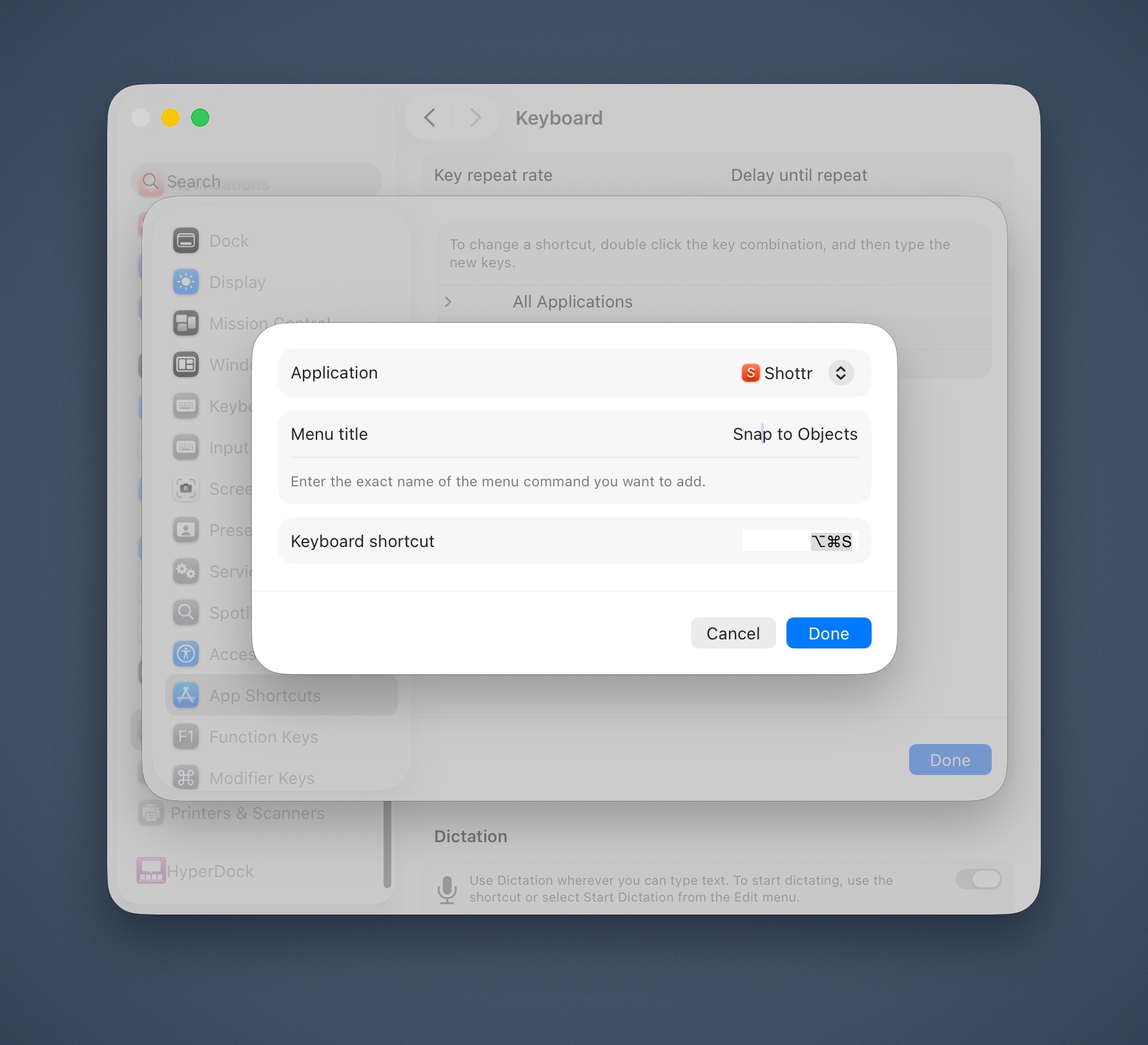
- Click Done, and you're all set.
Now open the app and check the menu — your new shortcut should appear right next to the command in gray text.
A few things worth knowing
- macOS requires custom shortcuts to include at least one modifier key (⌘, ⌥, ⌃, or ⇧), so something like just "U" won't work. "Fn" combinations aren't accepted in that field either.
- If you pick a combo that the system already uses (like Cmd+Space for Spotlight), the system-level shortcut will usually win and your custom one just won't fire.
- If your new shortcut was already assigned to something else, the old command loses its shortcut.
- Not working? Double-check for typos in the menu title. Try quitting and reopening the app. When pressing the shortcut, check if the app's menu (the parent menu item for the chosen command) flashes — if it does, the shortcut gets executes, but the command may not be available at this moment.
- Want to remove shortcut? Go back to the same App Shortcuts panel and click the – (minus) button to delete it.